Updated on: June 4, 2026
Reading Time: 4 minutes
TL;DR: Save frequently visited stops with specific time windows using your route planner’s favorites feature to eliminate repetitive address entry and prevent missed delivery windows. This approach reduces route planning time by automatically incorporating time constraints into daily optimization. Route optimization tools like Zeo Route Planner address this with favorites for frequently used stops and time window constraints, helping delivery teams save 2+ hours daily.
Some delivery stops aren’t flexible. They expect you to show up at a specific time, not earlier, not later. And if you visit the same location every day, it becomes a routine headache. Re-entering the address, remembering the time window, and optimizing the same route daily. It’s repetitive and easy to mess up.
Zeo Route Planner simplifies all of that with a feature designed for drivers who value precision and efficiency. Adding timeslot scheduling to your favourite stops. You can save frequently visited stops, assign preferred delivery time windows, and let Zeo do the rest. Every time you build a route, Zeo automatically takes that timeslot into account and optimizes the route to match your timeslot.
It’s smart, quick, and designed to take small tasks off your plate, so you can stay focused on the road.
Let’s walk you through how it works.
Why Favourite Stops with Timeslot Scheduling Matter
When you’re delivering to the same warehouse, retail store, or office multiple times a week, entering the same address details and remembering its delivery window is not efficient. These are your regular stops, the ones that follow strict time slots, expect prompt service, and don’t have room for delays.
That’s exactly why Favourite Stops with Timeslot Scheduling in Zeo Route Planner is a feature worth using. It keeps your routes optimized, your deliveries on schedule, and your day a whole lot efficient.
Here’s how this feature helps in your day-to-day:
- Saves time during route creation by eliminating repetitive address entry.
- Reduces the risk of missed time windows, which could lead to failed deliveries.
- Improves route accuracy by planning around time-based constraints.
- Minimizes confusion and back-and-forth calls between drivers and customers.
Understanding Time Window Constraints in Route Planning
Time window constraints represent one of the most complex challenges in logistics optimization. According to the U.S. Department of Transportation’s freight data, over 60% of commercial deliveries operate within specific time requirements that directly impact customer satisfaction and operational costs.
These constraints aren’t just preferences—they’re business requirements. Retail stores need deliveries before opening hours. Restaurants require fresh ingredients at specific times. Medical facilities operate on strict schedules that can’t accommodate delays. When route planning software doesn’t account for these windows, the result is missed deliveries, frustrated customers, and wasted fuel from return trips.
The challenge compounds when dealing with recurring stops. Manual entry of the same addresses and time requirements creates opportunities for human error, while failing to leverage historical data that could streamline future planning. Successful route optimization case studies consistently show that businesses addressing time window management see the most significant efficiency gains.
How to Add Timeslot to Your Favourite Stops in Zeo
Ready to take the smart route? Here’s how to set up your Favourite Stops with timeslot scheduling in Zeo Route Planner:
- Step: Head to the Zeo dashboard.
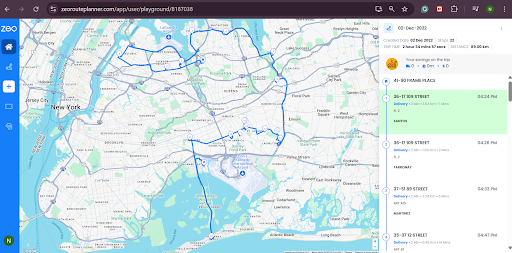
- Step: Go to the Settings section.
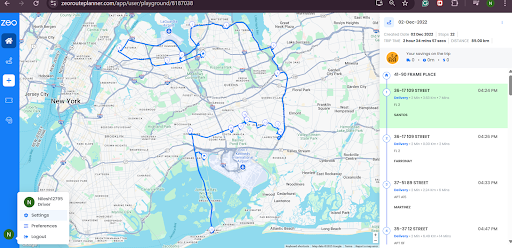
- Step: Click on Favourites.
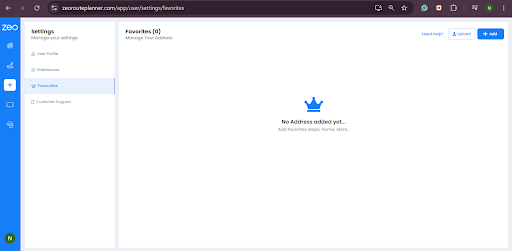
- Step: Click on the add button in the top right corner of your screen.
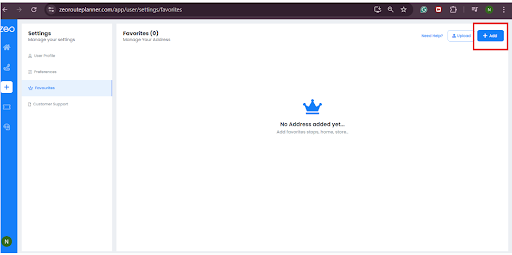
- Step: Enter the stop details – address, notes, start time, end time, duration, customer name, and other information. Click on save.
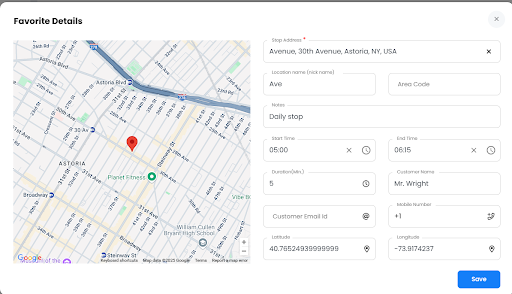
- Step: The stop will appear in your favourites list along with the mentioned timeslot. You can simply add this route to your dashboard and start your optimized journey. Zeo will optimize the route while considering the timeslot scheduling, so that you don’t miss the mark.
How Zeo Uses That Timeslot for Route Optimization
Once you’ve added a timeslot to your favourite stop, Zeo Route Planner uses it as a fixed rule during route optimization. The system doesn’t treat it like a casual note, it actively builds your route around that delivery time window.
Zeo makes sure you’re arriving exactly when you’re supposed to, within the defined timeframe. No early arrivals that leave you waiting. No late stops that upset the client. It’s smart, structured planning that keeps your route on track and your deliveries running smoothly.
Here’s how it works:
Optimize routes with our algorithm, reducing travel time and costs efficiently.
increase fuel savings
Save $200 on fuel, Monthly!
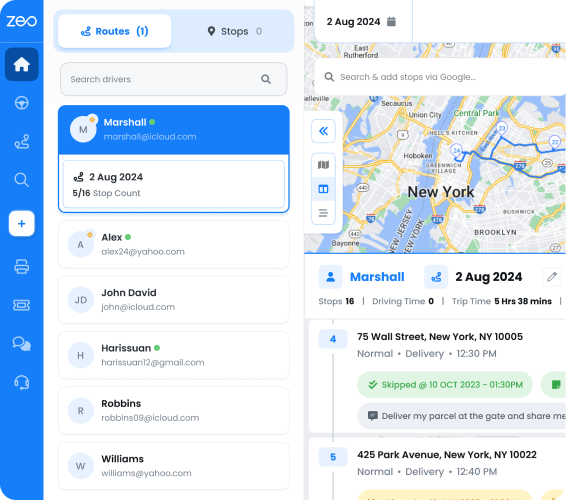
- The route optimization engine treats timeslots as constraints.
- It plans other stops around them so you arrive exactly when needed.
- You’ll always get ETAs that align with delivery time expectations.
With timeslot scheduling built right into your favourite stops, Zeo Route Planner helps you stay sharp and on time, without second-guessing your schedule. Every stop is timed to match real-world constraints, so you can focus on the road, not on juggling delivery windows.
You avoid missed time slots, unnecessary delays, and follow-ups. Just reliable, on-time service that makes you look professional and keeps your day running like clockwork.
Maximizing Efficiency with Recurring Route Patterns
Beyond individual time windows, successful delivery operations recognize patterns in their recurring routes. Research from the Bureau of Transportation Statistics shows that businesses with optimized recurring delivery patterns reduce operational costs by up to 30% compared to ad-hoc routing approaches.
The key lies in leveraging historical data from your favorite stops to identify optimal departure times, sequence patterns, and buffer time requirements. When you consistently visit the same locations with the same time constraints, your route optimization software should learn from these patterns to suggest improvements automatically.
This systematic approach transforms route planning from a daily puzzle into a refined process. Modern route planner apps in 2026 excel at this pattern recognition, using AI-powered optimization to continuously refine recurring routes based on real-world performance data.
Zeo Understands the Small Stuff That Matters
Most route planners just focus on getting you from one stop to the next. Zeo Route Planner does more than that. It learns how you work, your repeat stops, your time-sensitive deliveries, and the daily grind that most apps ignore.
When you save a favourite stop with a specific time window, Zeo remembers it every time. No more punching in the same information over and over. No more risking a missed window because your route didn’t account for the time window.
Add your favourite stops, lock in your delivery windows, and let Zeo do the rest. Want to see how this feature makes a big difference? Schedule a free demo and get a feel for smarter route planning, built for drivers like you.
Frequently Asked Questions
How do time window constraints affect overall route efficiency?
Time window constraints typically increase route complexity but improve customer satisfaction and reduce failed deliveries. Studies show that while constrained routes may be 10-15% longer in distance, they eliminate costly return trips and improve on-time performance by up to 85%.
What’s the difference between hard and soft time windows in delivery planning?
Hard time windows are strict requirements that cannot be violated (like medical deliveries), while soft time windows allow some flexibility with potential penalties. Most businesses use a combination of both depending on customer priority and service level agreements.
Should I save every customer location as a favorite stop?
Save locations as favorites when you visit them regularly (weekly or more frequently) or when they have specific requirements like time windows, special instructions, or access codes. This reduces repetitive data entry and ensures consistency in service delivery.
How does route optimization handle multiple stops with overlapping time windows?
Advanced route optimization algorithms prioritize stops based on window constraints, travel time, and service duration to find feasible solutions. When conflicts exist, the system typically suggests schedule adjustments or identifies which constraints can be relaxed.
Can route planning software integrate with my existing customer database?
Most modern route planners offer integrations with popular business systems through APIs or direct connections. Zeo Route Planner integrates with platforms like Shopify, WooCommerce, and HubSpot CRM, automatically importing customer addresses and delivery preferences to streamline the planning process.

Are you a fleet owner?
Want to manage your drivers and deliveries easily?
Grow your business effortlessly with Zeo Routes Planner – optimize routes and manage multiple drivers with ease.

increase fuel savings
Save 2 Hours on Deliveries, Everyday!
Optimize routes with our algorithm, reducing travel time and costs efficiently.
Get Started for Free