How to Assign Stops to Drivers Based on Their Skills?

How to Assign Stops to Drivers Based on Their Skills?

How to Assign Stops to Drivers Based on Their Skills?, Zeo Route Planner
Reading Time: 3 minutes

Updated on: July 21, 2025

“`html

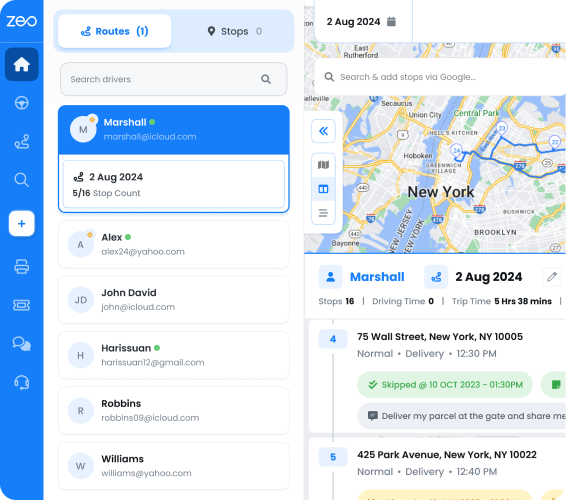
In the fast-paced world of waste management and home services, assigning stops is based on each driver’s unique skills and abilities. Businesses can optimize workflow efficiency, minimize errors, and ultimately enhance customer satisfaction by strategically assigning stops according to each employee’s skills. Customising stops for drivers based on their skills ensures that tasks are allocated to the most qualified individuals. In this blog post, we will discuss how to assign stops to drivers based on their skills.

Why Should You Assign Stops Based on Driver Skills?

Assigning stops based on driver skills ensures a better task fit. Drivers handling jobs that match their strengths, reducing mistakes, and improving service quality. This approach also increases efficiency by cutting travel time and avoiding unnecessary rework, helping operations run faster and smoother. As a result, customers enjoy a more consistent, professional experience from qualified drivers, which strengthens trust and satisfaction.

Skill-based assignments prevent overburdening of drivers by promoting a balanced workload. Skilled drivers can handle multiple stops without any delays. Thus with the smart talent leads to significant cost savings in fuel, labor, and operational efficiency.

How You Can Assign Stops Based on Driver Skills with Zeo

Assigning stops with Zeo based on driver skills is simple and hassle-free. This step-by-step guide will help you allocate stops more effectively, boost efficiency, and get the best out of your team.

How to Assign Stops to Drivers Based on Their Skills?, Zeo Route Planner
increase fuel savings

Save $200 on fuel, Monthly!

Optimize routes with our algorithm, reducing travel time and costs efficiently.

Get Started for Free
How to Assign Stops to Drivers Based on Their Skills?, Zeo Route Planner

Just follow these easy steps to streamline your operations and make the most of your workforce.

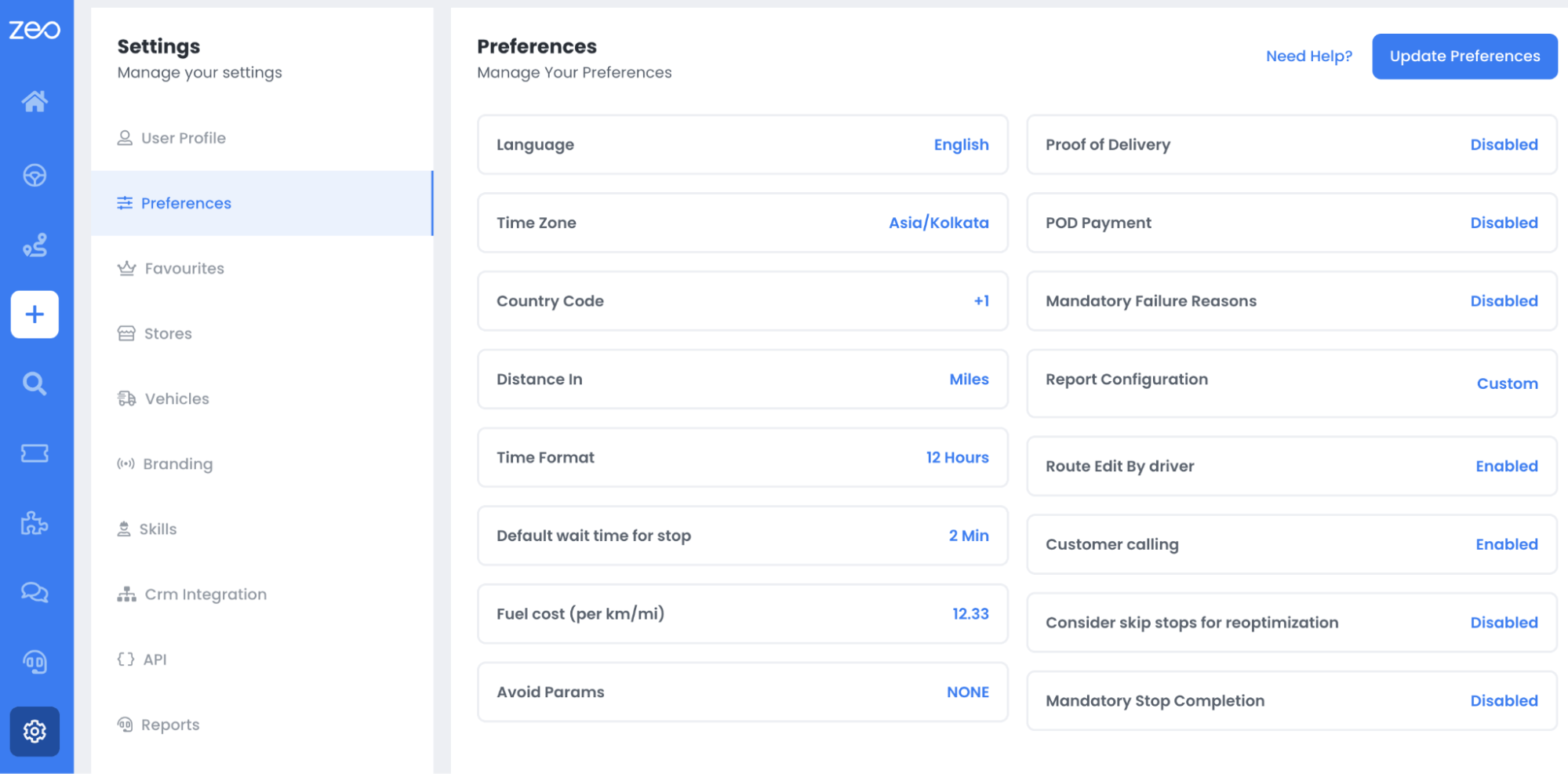
  1. Open the settings.
    How to Assign Stops to Drivers Based on Their Skills?, Zeo Route Planner
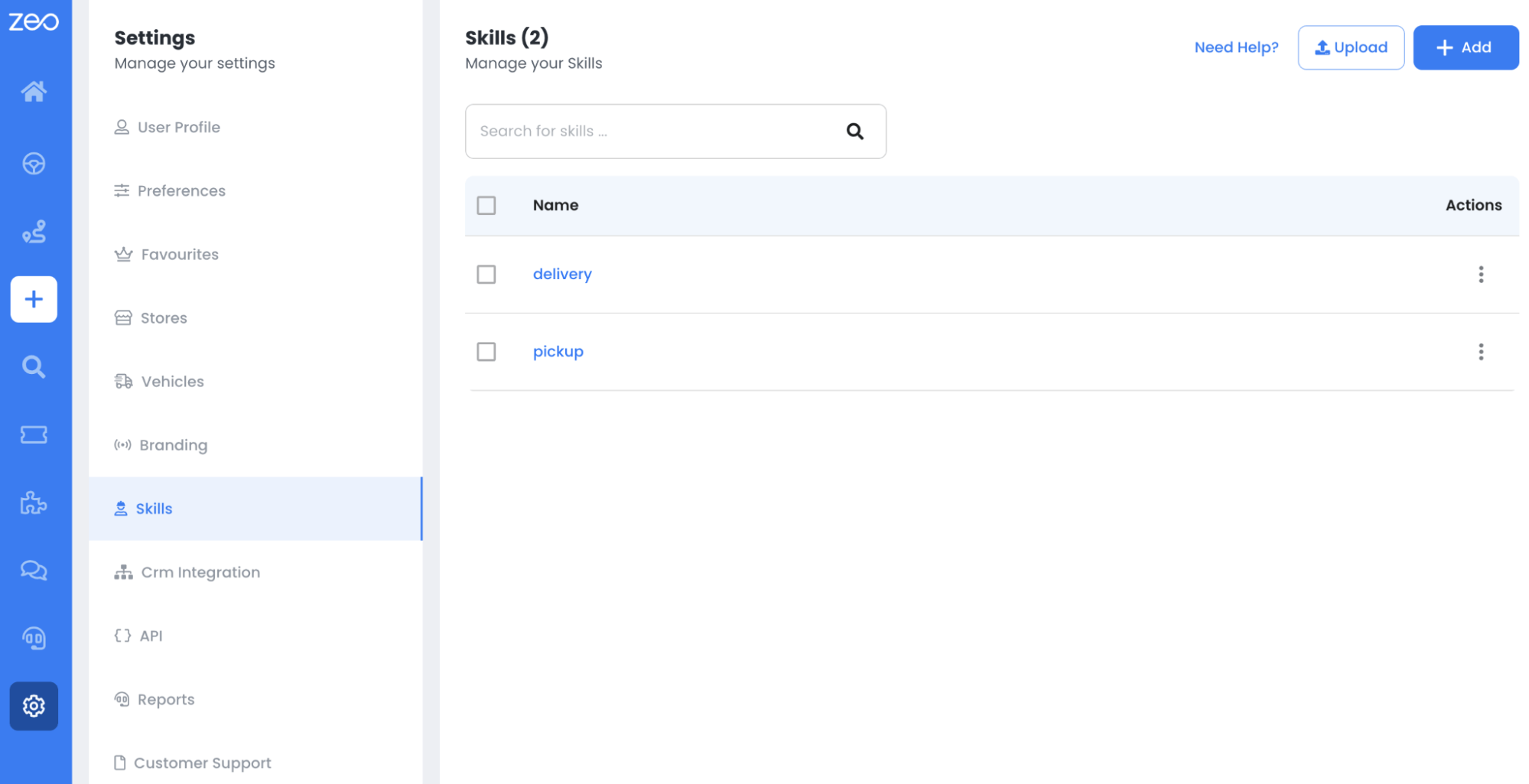
  2. Click on the Skills options.
    How to Assign Stops to Drivers Based on Their Skills?, Zeo Route Planner
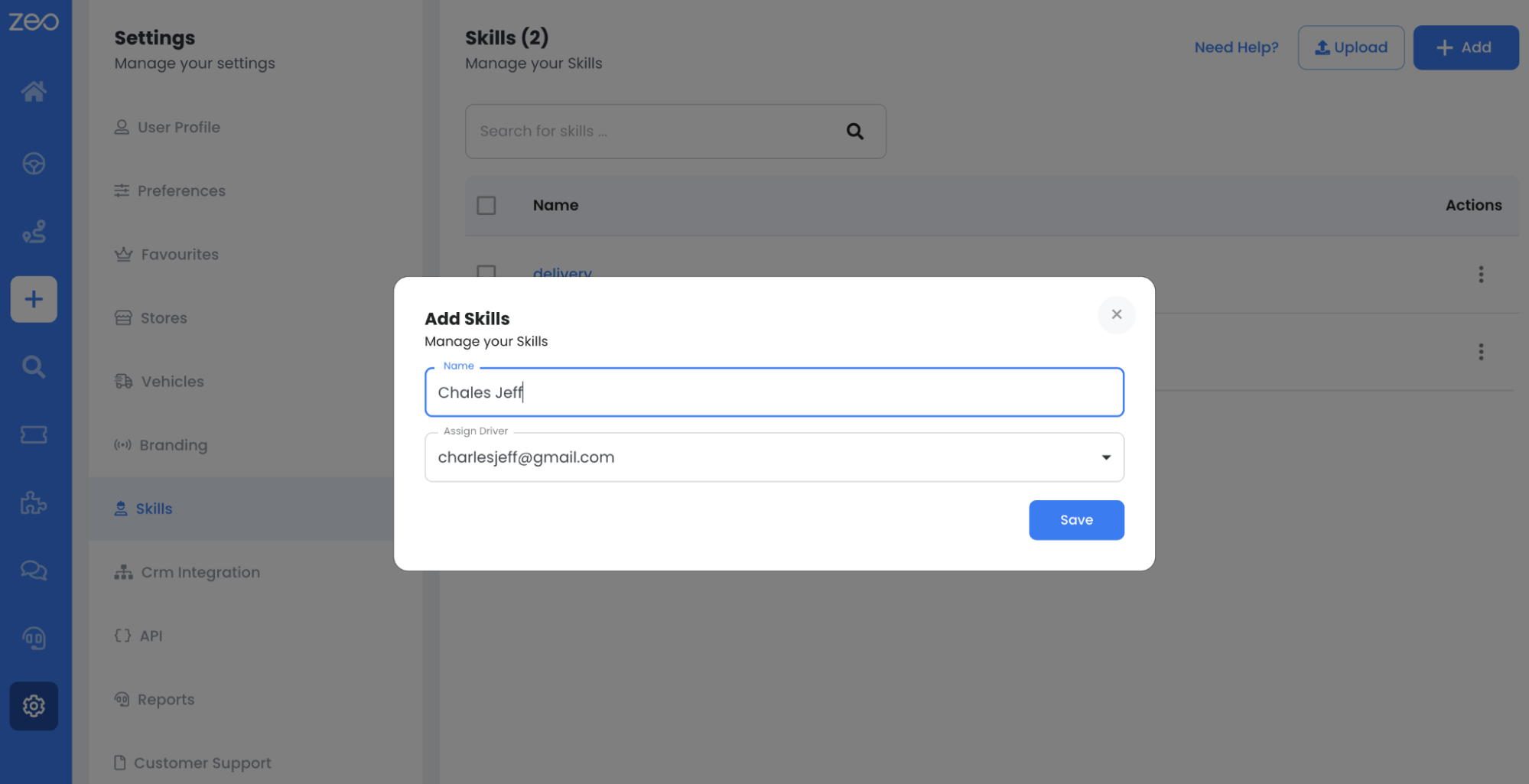
  3. Click on Add and define the skills you want your drivers to have.
    How to Assign Stops to Drivers Based on Their Skills?, Zeo Route Planner
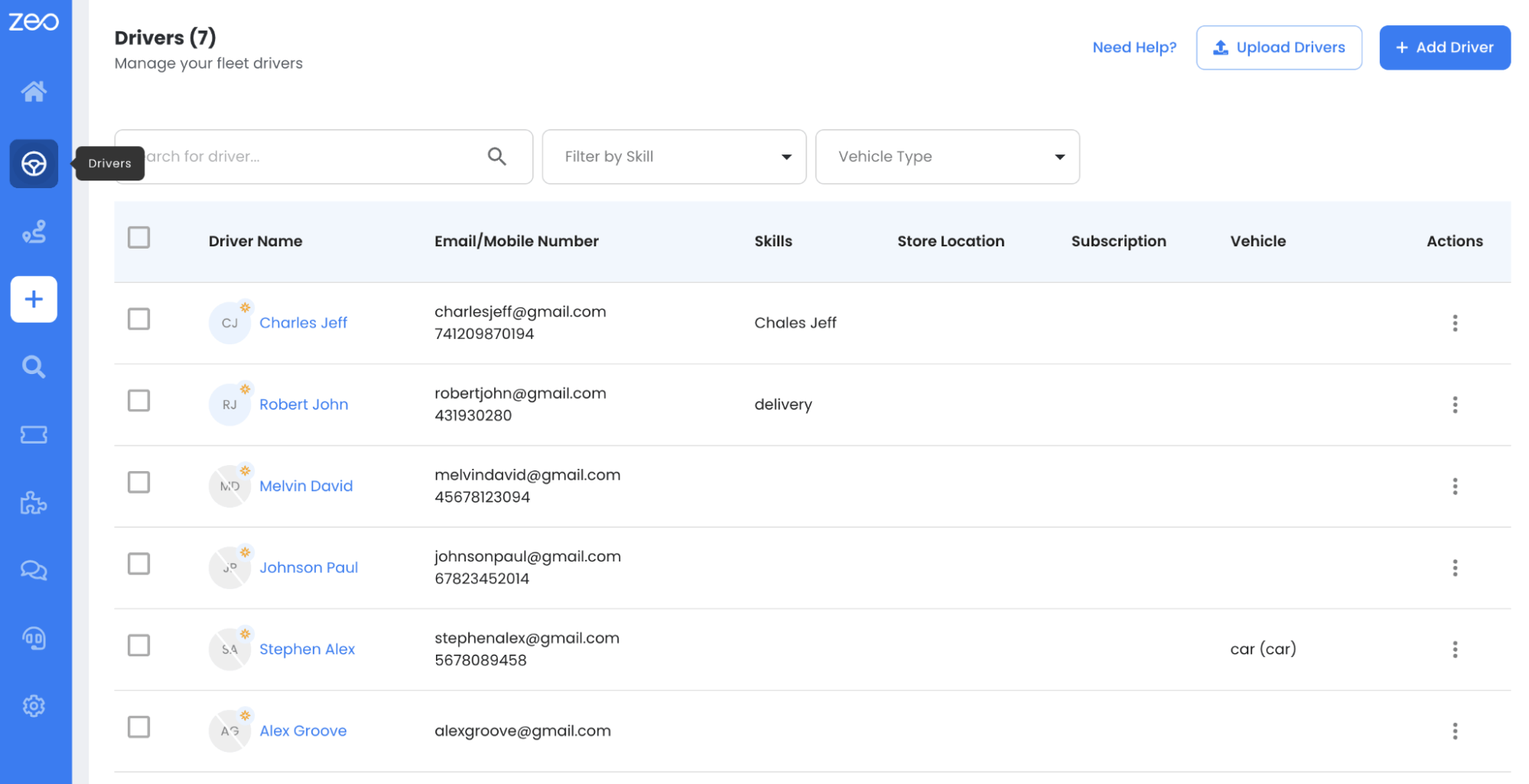
  4. Click on the Driver icon on the sidebar displayed on the left side of your screen.
    How to Assign Stops to Drivers Based on Their Skills?, Zeo Route Planner
  5. Select a particular driver and select the option to edit their information.
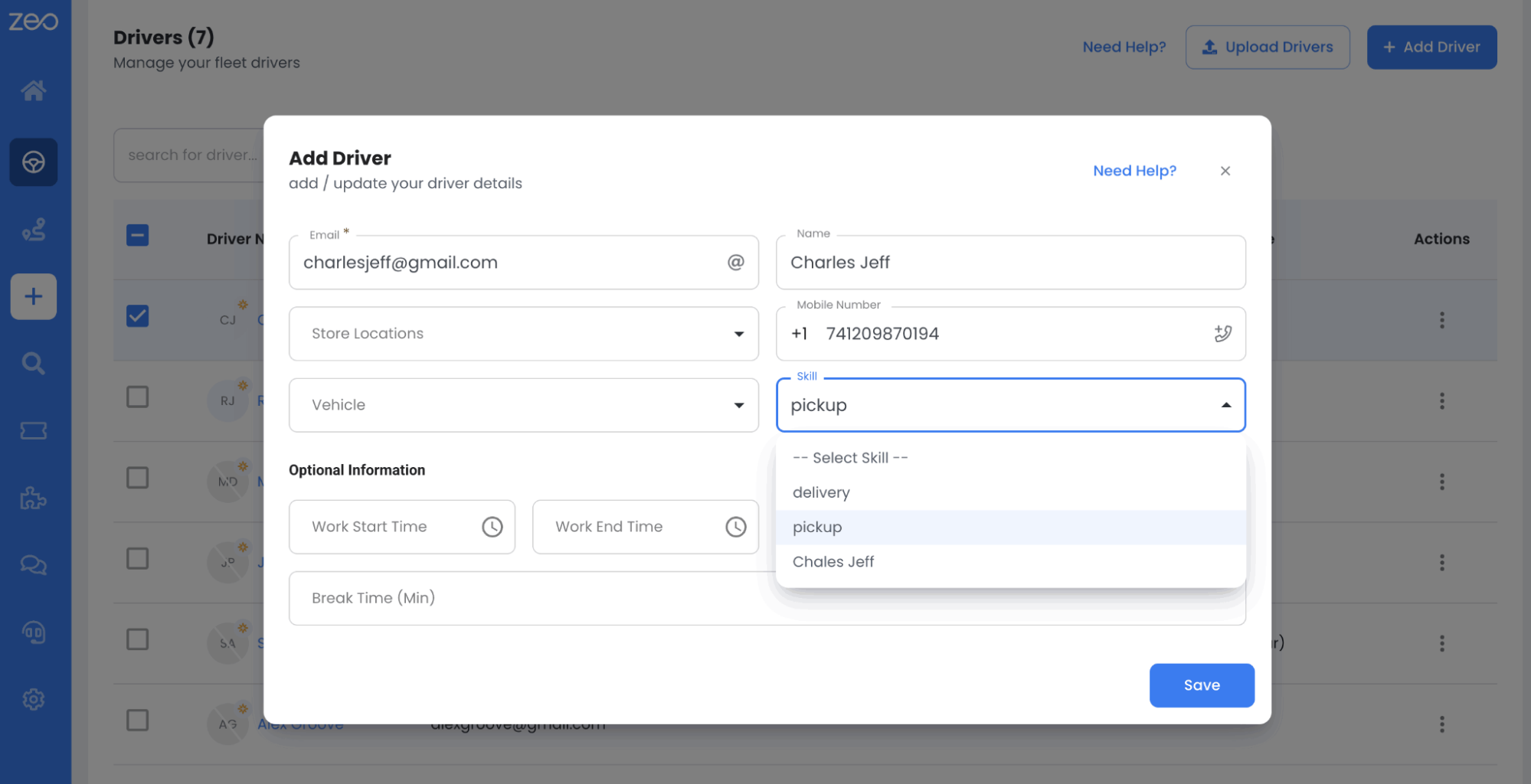
  6. From the information details displayed, click on the Skills dropdown option.
    How to Assign Stops to Drivers Based on Their Skills?, Zeo Route Planner
  7. Choose the required skill and click on Save.
  8. Repeat the same steps for other drivers.

Using Zeo: How Assigning Stops to drivers Based on their Skills can help you?

  • Improves Accuracy and Timeliness in Task Execution: Delays can be totally reduced by Zeo’s skill-based assignment feature, which can be done by matching tasks to the driver’s potential. This can reduce the mistakes and increase the accuracy of the job done.
  • Increased Productivity: Based on the driver’s location and shift timings, Zeo’s feature assigns stops to the driver. Thus task done by drivers will be highly productive as they clearly understand their jobs.
  • Enhanced Driver Satisfaction : Zeo ensures the right individual handles each task properly, as stops can be assigned based on specific driver skills. This can increase driver satisfaction when they are assigned a task that they really know.
  • Reduced Costs: Zeo’s skill-based assignment feature shorter travel durations for drivers lead to reducing fuel consumption and allow for more frequent stops, enhancing productivity without additional labor costs.

Conclusion

Waste management and home services face many issues, and a perfect solution will be a game-changer. Companies can streamline processes, boost efficiency, and get more done with less effort by using Zeo’s advanced skill-based stop assignment. Want to see how Zeo can simplify and speed up your delivery operations? Book a free demo with our experts today.

“`

Rate this post:

😡 0😐 0😊 0❤️ 0
In This Article
increase fuel savings

Hassle Free Deliveries & Pickups!

Optimize routes with our algorithm, reducing travel time and costs efficiently.

Get Started for Free
Join our newsletter

Get our latest updates, expert articles, guides and much more in your inbox!

    By subscribing, you agree to receive emails from Zeo and to our privacy policy.

    Zeo Questionnaire

    Frequently
    Asked
    Questions

    Know More

    How do I add stop by typing and searching? Web

    Follow these steps to add a stop by typing and searching:

    • Go to Playground Page. You will find a search box in top left.
    • Type in your desired stop and it will show search results as you type.
    • Select one of the search results to add the stop to list of unassigned stops.

    How do I import stops in bulk from an excel file? Web

    Follow these steps to add stops in bulk using an excel file:

    • Go to Playground Page.
    • In top right corner you will see import icon. Press on that icon & a modal will open.
    • If you already have an excel file, press the "Upload stops via flat file" button & a new window will open up.
    • If you don't have an existing file, you can download a sample file and input all your data accordingly, then upload it.
    • In the new window, upload your file and match the headers & confirm mappings.
    • Review your confirmed data and add the stop.

    How do I import stops from an image? Mobile

    Follow these steps to add stops in bulk by uploading an image:

    • Go to Zeo Route Planner App and open On Ride page.
    • Bottom bar has 3 icons in left. Press on image icon.
    • Select the image from gallery if you already have one or take a picture if you don't have existing.
    • Adjust the crop for the selected image & press crop.
    • Zeo will automatically detect the addresses from the image. Press on done and then save & optimize to create route.

    How do I add a stop using Latitude and Longitude? Mobile

    Follow these steps to add stop if you have Latitude & Longitude of the address:

    • Go to Zeo Route Planner App and open On Ride page.
    • You will see a icon. Press on that icon & press on New Route.
    • If you already have an excel file, press the "Upload stops via flat file" button & a new window will open up.
    • Below search bar, select the "by lat long" option and then enter the latitude and longitude in the search bar.
    • You will see results in the search, select one of them.
    • Select additional options according to your need & click on "Done adding stops".

    How do I add stops using QR Code? Mobile

    Follow these steps to add stop using QR Code:

    • Go to Zeo Route Planner App and open On Ride page.
    • You will see a icon. Press on that icon & press on New Route.
    • Bottom bar has 3 icons in left. Press on QR code icon.
    • It will open up a QR Code scanner. You can scan a normal QR code as well as a FedEx QR code, and it will automatically detect the address.
    • Add the stop to route with any additional options.

    How do I delete a stop? Mobile

    Follow these steps to delete a stop:

    • Go to Zeo Route Planner App and open On Ride page.
    • You will see a icon. Press on that icon & press on New Route.
    • Add some stops using any of the methods & click on Save & Optimize.
    • From the list of stops that you have, long press on any stop that you want to delete.
    • It will open window asking you to select the stops that you want to remove. Click on Remove button and it will delete the stop from your route.

    Xlork is a developer-first data import platform. It lets you embed CSV, Excel, and Google Sheets import into any app with AI-powered column mapping and schema validation. Explore free developer tools like JSON-to-CSV converters and color palette generators. No more building import flows from scratch — just drop in the Xlork SDK, sign up free, and ship clean data in minutes.