Updated on: June 5, 2026
In today’s competitive business world, receiving a customized and branded experience is very important. Delivering the notifications to customers with brand’s identitiy is crucial to make them remember the brand. By enhancing brand visibility and recognition, the brands can practice effective marketing too. In this blog post we will discuss how to send delivery intimations to customers with branding and it’s benefits.
Impact Of Sending Branded Delivery Intimations
Sending customized messages is not an ineffective process and not done just for a formality. It is a strategic move that can really impact customer perceptions and loyalty.
Now let’s see some of the impact od sending branded delivery intimations.
- Enhances Brand Visibility and Recognition: Branding always reminds the customers about your brand. The brand boost the recognition in the minds of customers by increasing the visibility of the brand.
- Increases Customer Trust and Loyalty: When businesses send out branded notifications, it shows they care about professionalism which can builds trust and strengthens customer loyalty. Thus every time it can deliver polish on-brand experience, people notice and appreciate the effort.
- Improves Overall Customer Experience: Personalized and branded delivery notifications can enhanced customer experience. Beyond the purchase point It can leaving a positive impression.
How to Send Delivery Intimations with your Branding using Zeo: A Step-wise Guide
Zeo makes it extremely easy and convenient to send branded delivery intimations to your customers. Whenever you create a route for the drivers, you can send their live location to the customers. Within the live location message, you can customize a few notable things.
Follow these simple steps to enhance your customer experience and brand recognition:
Optimize routes with our algorithm, reducing travel time and costs efficiently.
increase fuel savings
Save $200 on fuel, Monthly!
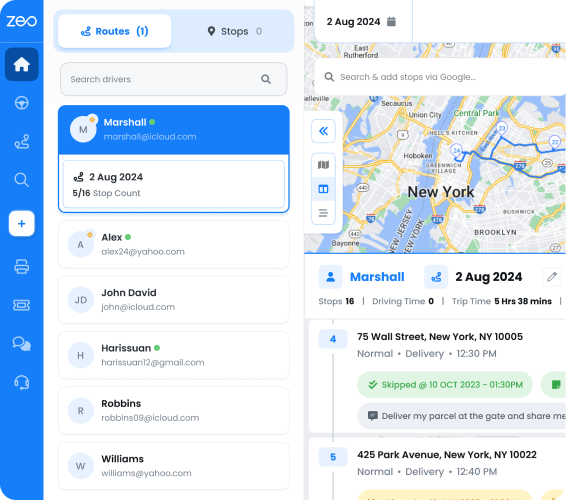
- Once the route is created, go to settings
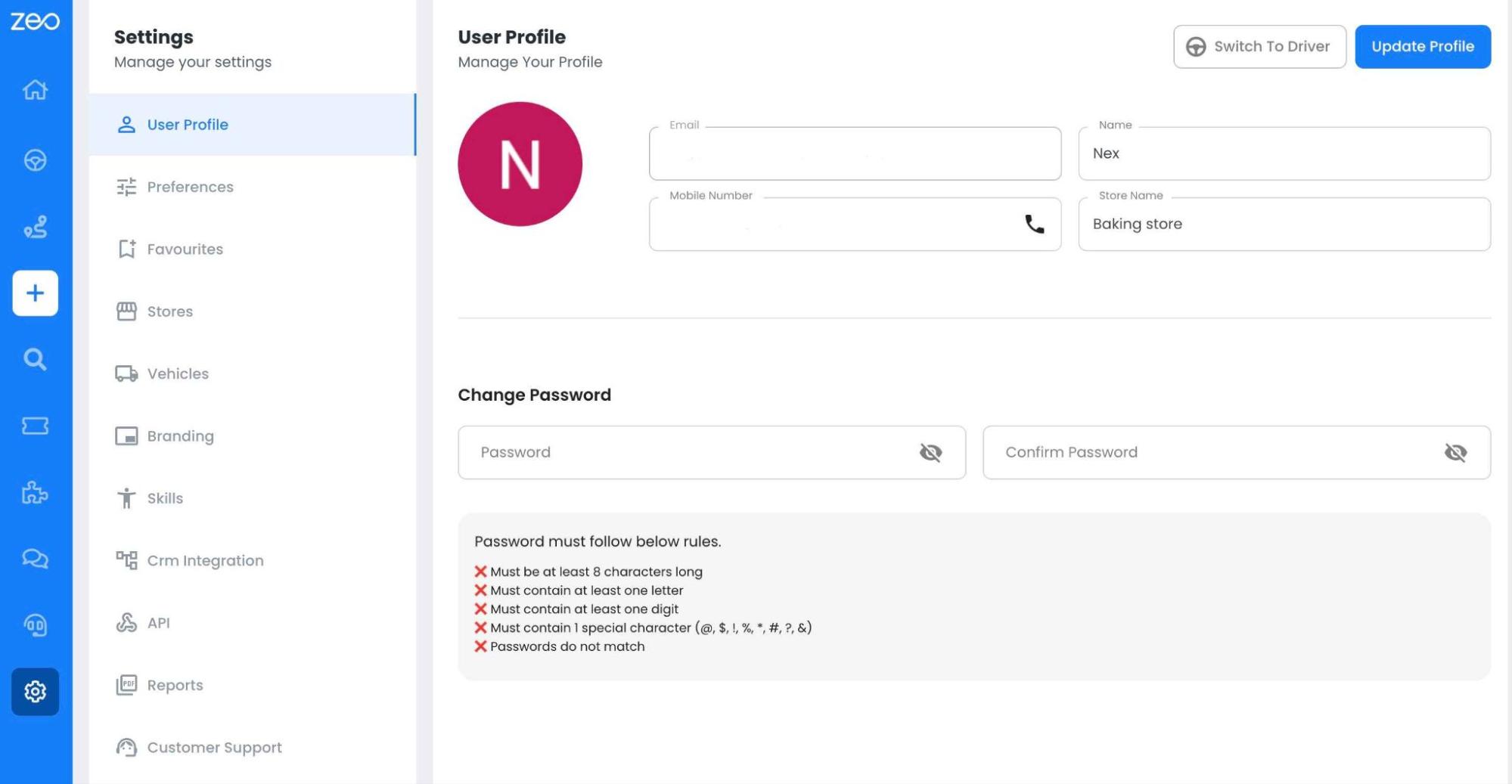
- From the sidebar, choose the branding option. The ‘Branding’ page will provide the quick preview of the customization elements.
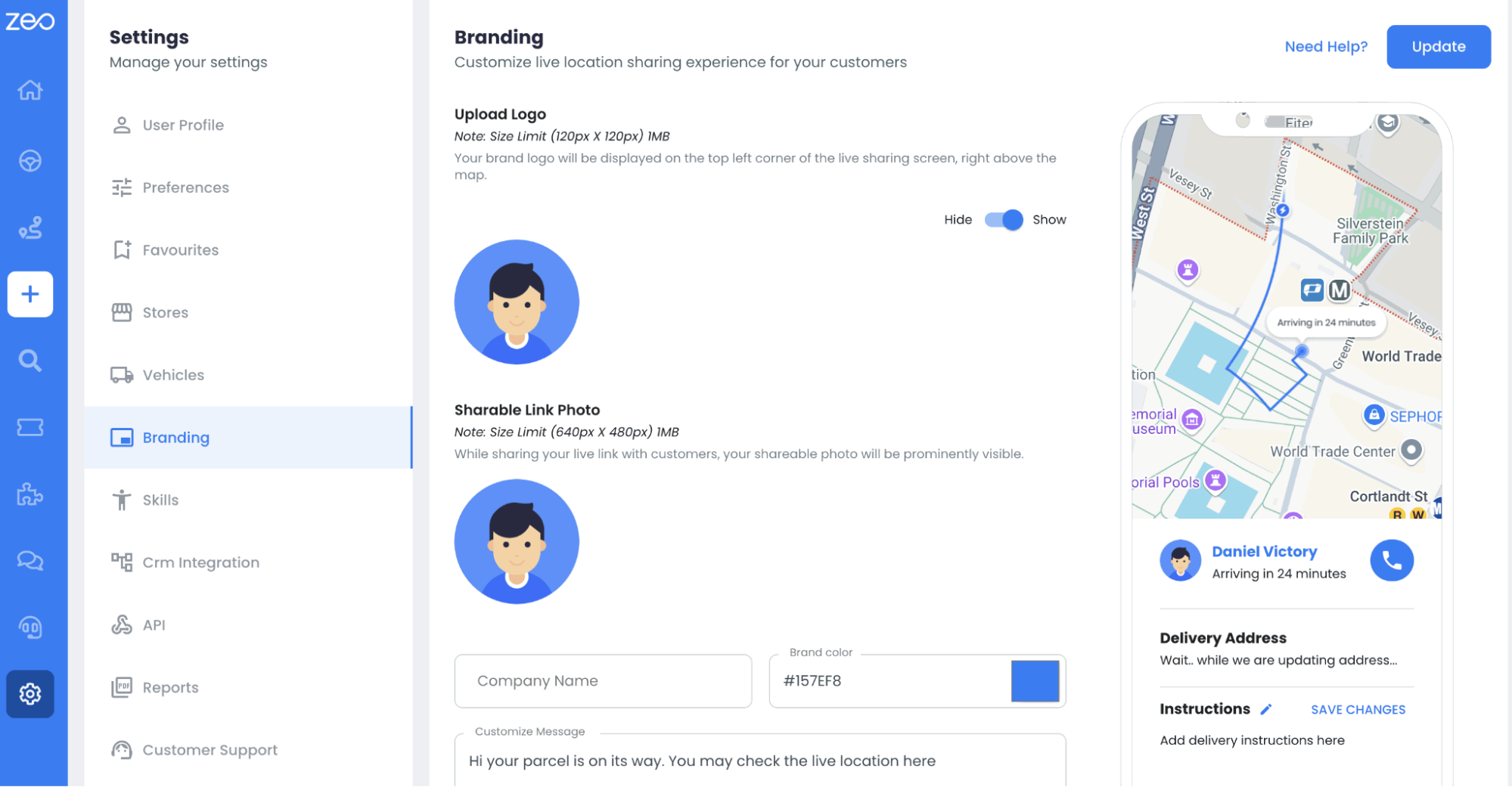
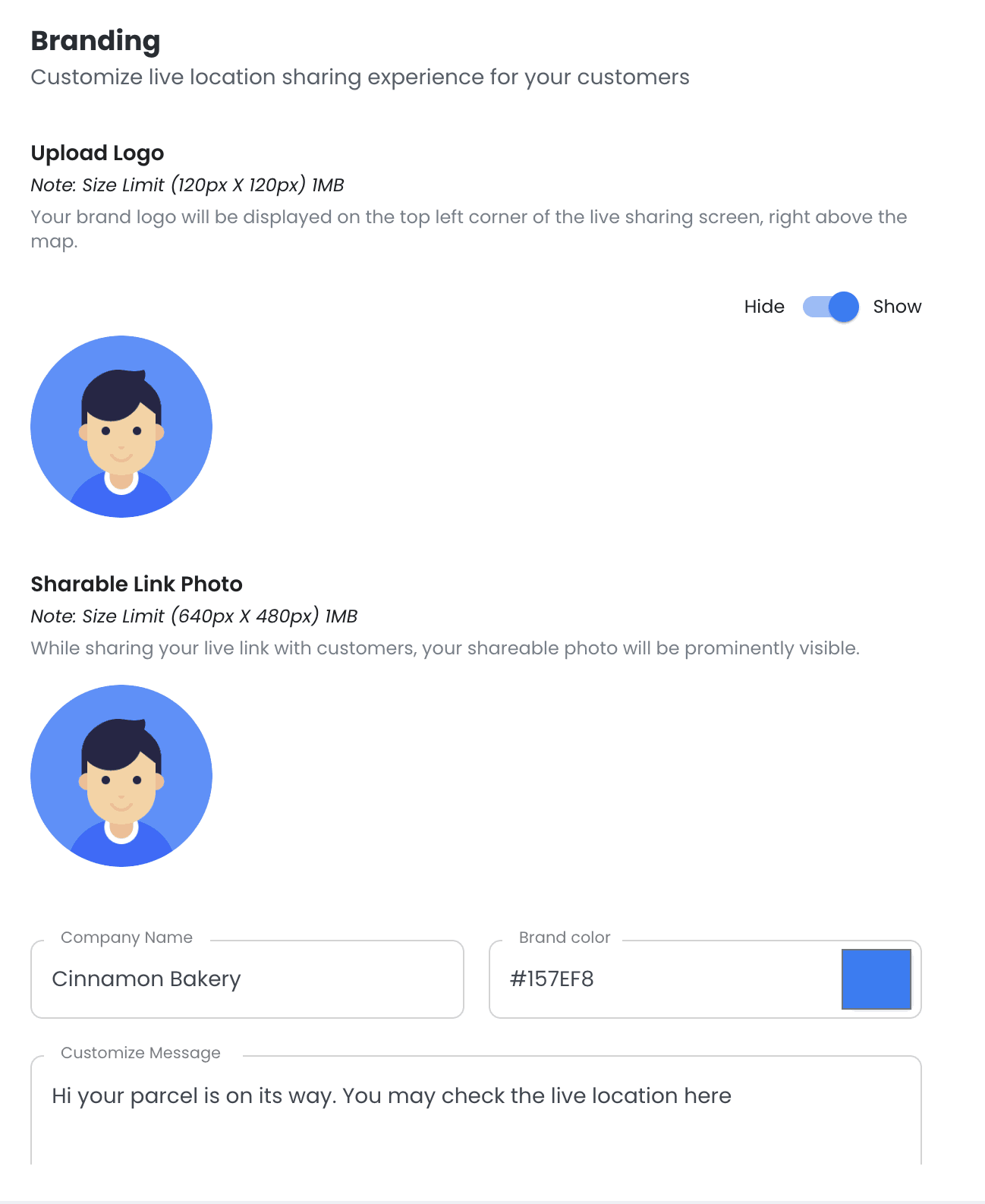
- Upload the company logo. You can either choose to show or hide it. The logo will be displayed in the Quick Preview pane on the right of the screen. You can add your brands personal details.
- Upload the company photo.
- Enter your company name.
- Choose your brand color. The asset colors will change accordingly.
- Type in your customized message to be sent to the customers in the text box.
- Now click on Update.
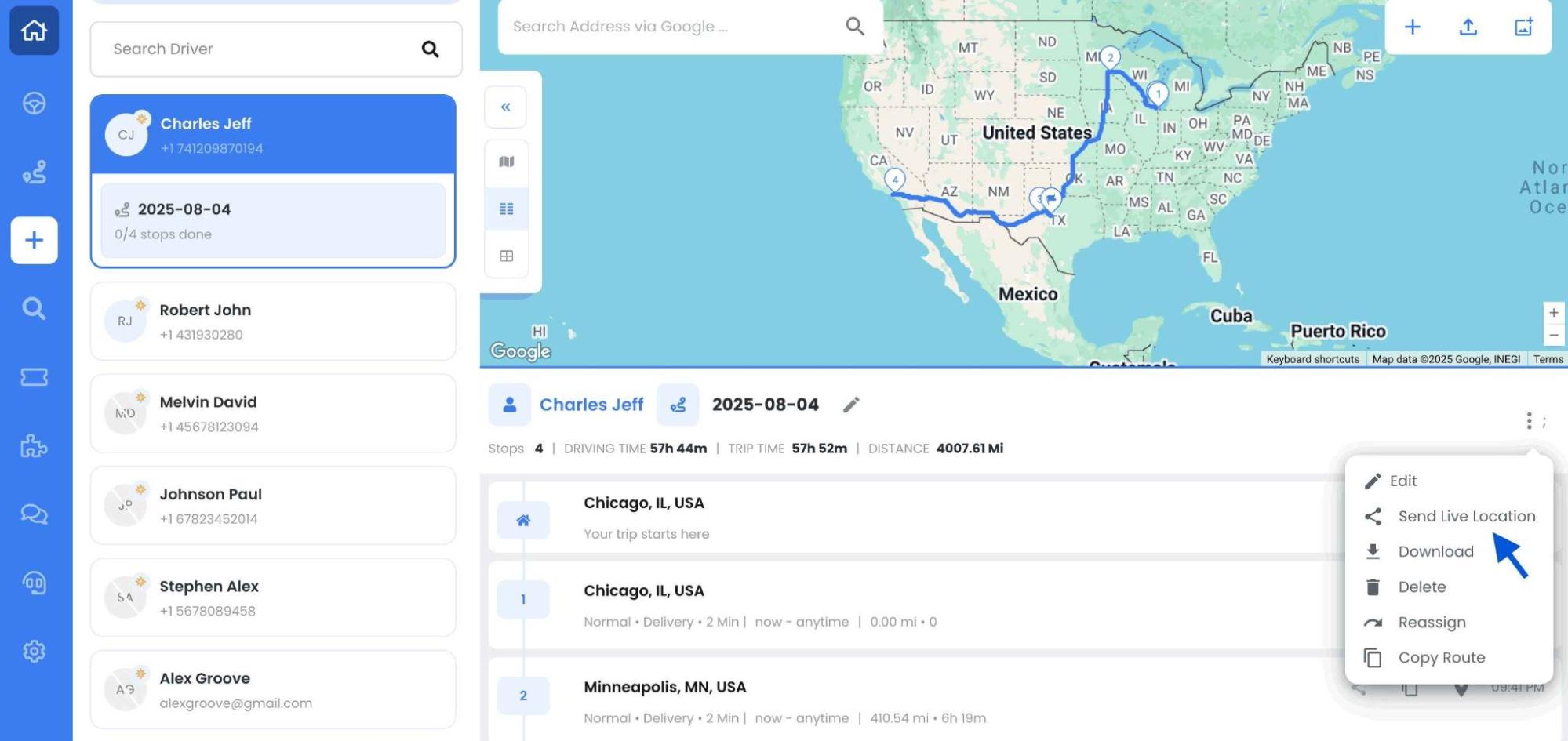
- Go to the Route that is already created and share the live location with your customers.
- Now your customers will get customized and branded messages.
Benefits of Using Zeo for Branded Delivery Intimations
Zeo Route Planner’s branding features can elevate the brands delivery experience. It leaves long loasting customer impressions on customers. From brand visibility to building trust and loyalty, Zeo can play an important role in driving customer satisfaction and business sucess. Some benefits of using Zeo’s brand delivery intimations are as follows:
- Streamline the Process of Sending Branded Delivery Notifications: Zeo’s inbuilt platform simplifies the process of sending branded delivery notifications. For tailing this process it provide user-friendly tools and templates.
- Provides a Seamless and Professional Experience for Customers: With Zeo, company can ensure that all messages are sent to customers reflects their brand identity effortlessly. Zeo offers customization options From logos and color schemes to messaging. Thus Zeo can maintain a consistent and professional brand image throughout the delivery process.
- Offers Customization Options to Align with the Brand: Zeo provides extensive customization options to align with diverse brand identities and preferences. It can add company logo, incorporating specific brand colors, or crafting personalized messages. Zeo boost businesses to tailor their delivery notifications to resonate with their target audience
Conclusion
For any business sending customized messages are crucial feature to deliver a personalized and professional experience to customers. By adding Zeo’s innovative features and customizable options, businesses can streamline their delivery operations and can easily build trust and loyalty among customers.
If you want to make your business stand out from the crowd, choose Zeo for branded delivery intimations which is an essential feature to elevate your customer experience.

Are you a fleet owner?
Want to manage your drivers and deliveries easily?
Grow your business effortlessly with Zeo Routes Planner – optimize routes and manage multiple drivers with ease.
increase fuel savings
Save $200 on fuel, Monthly!
Optimize routes with our algorithm, reducing travel time and costs efficiently.
Get Started for Free